 Transcription
 X (Twitter)
 Tools
Tools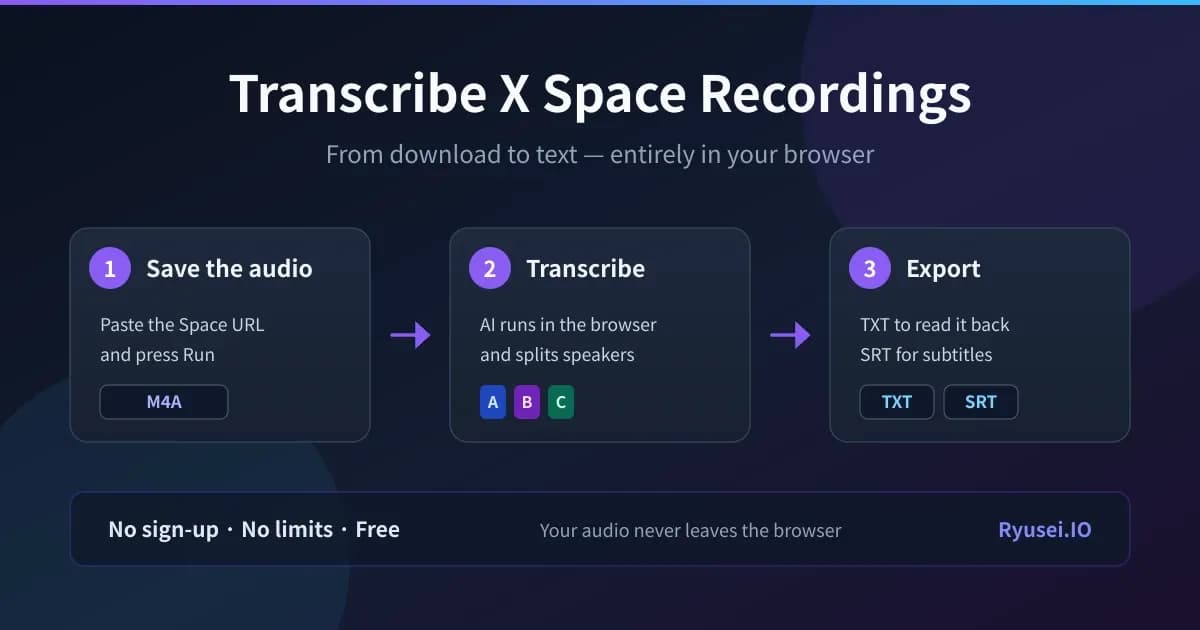
Spaces on X (formerly Twitter) are hard to catch up on once you miss them. Even when the archive is still available, sitting through an hour of audio a second time is rarely practical. With a transcript you can read only the parts you need.
A transcript is useful in a number of situations:
- Catching up on a Space you missed
- Searching back for a particular remark
- Quoting what was said accurately
- Writing up a Space you hosted as a post or an article
- Keeping minutes or a record of the discussion
This article explains how to turn a published Space recording into text. Everything runs in your browser. You do not need an account, and there is nothing to install or pay for.
The process has two stages: saving the recording as an audio file, and transcribing that file. Each stage uses a different tool, but both run in the browser.
What You'll Learn from This Article
- How to download a Space recording as an audio file
- How to transcribe the downloaded audio in your browser
- How to separate speakers and export the result as text or subtitles
- Settings that improve transcription accuracy
Two ways to transcribe a Space
There are two general approaches. You can generate captions live while the Space is running, or you can transcribe the recorded archive after it ends.
Live captions | Transcribing the archive | |
|---|---|---|
When it works | Only during the broadcast | Any time after the Space ends |
What it covers | The Space you are listening to right now | Any Space with a published archive |
Accuracy | Lower, because it runs in real time | Higher, because the full audio is processed |
Keeping the result | Usually not saved | Saved as a text or subtitle file |
Separating speakers | Difficult | Speakers can be split apart |
This article covers the second approach. It suits you if you want to catch up on a Space you missed, or turn the content into notes or an article.
What you need
- The URL of a Space whose archive is public
- A PC or a smartphone — a browser is enough
- Free storage for the transcription model (about 40 MB at minimum, up to 2.0 GB for the largest model)
- Spare memory for the run itself (around 300 MB on the smallest model, over 3 GB on the largest)
No dedicated app, and no development environment such as Python, is required.
Step 1: Download the Space recording
First, save the recording as an audio file using the tool below.

Download published recording archives of X (formerly Twitter) Spaces as M4A. Save Spaces you missed to your PC (Windows/Mac) or phone (iOS/Android) and listen offline. Just paste a URL — no account, completely free.
- Copy the URL of the Space you want to save. A direct link to the Space works, and so does the URL of a post the Space is attached to.
- Paste it into the input field and press Execute. The download is processed on the server.
- When processing finishes, the Download button becomes available. The recording is saved as an M4A audio file.

A more detailed walkthrough of the download step, including a command-line method, is covered in a separate article.

Until June 2022, Twitter Spaces recording archives were automatically deleted after one month. However, this policy was later changed to allow unlimited storage, meaning recordings stay available for as long as the host keeps them public.
Step 2: Transcribe the downloaded audio
Next, convert the saved audio into text using the tool below.

Transcribe audio and video files in your browser. No account, no upload, and your audio never leaves your device. Completely free with no time or usage limits.
The M4A file from step 1 can be loaded directly. There is no need to convert it to MP3 first.
- Open the page and choose the model and the spoken language. Pick the language explicitly rather than leaving it on auto-detect.
- If more than one person speaks in the Space, turn on "Speaker diarization".
- Select the audio file, and transcription starts at that point (there is no start button). Drag and drop also works. Progress is shown, and the transcript appears on screen when it finishes.

The model is downloaded on the first run. After that the browser reuses the stored copy, so later runs start faster.
Choosing a model
Eight models are available. SenseVoice Small is the default for Japanese, Chinese and Korean. Larger Whisper models are more accurate, but they take longer to download and to run. The download sizes in the table apply when WebGPU is used; without WebGPU the downloads are smaller (about 40 MB for Tiny). Qwen3-ASR 1.7B runs only on a PC with WebGPU; it uses two models, one for the text and one for the timestamps, and takes about 5 GB of GPU memory.
Model | Download (with WebGPU) | Memory while running | Speed | WebGPU |
|---|---|---|---|---|
SenseVoice Small (Japanese, Chinese, Korean, English, Cantonese) | ~240 MB | ~500 MB | Fast | No |
Whisper Tiny | ~145 MB | ~300 MB | Fast | No |
Whisper Base | ~280 MB | ~600 MB | Moderate | No |
Whisper Small | ~925 MB | ~1.5 GB | Slow | No |
Whisper Medium | ~1.0 GB | ~2.2 GB | GPU recommended | Yes |
Whisper Large v3 Turbo | ~1.5 GB | ~2.6 GB | GPU recommended | Yes |
Whisper Large v3 | ~2.0 GB | ~3.5 GB | Slowest | Yes |
Qwen3-ASR 1.7B | ~5.2 GB | ~4.6 GB | GPU required | Yes |
For a Japanese Space, the default SenseVoice Small is fine: on 100 read-speech clips I measured, its Japanese character error rate was 8.6% against 14.1% for Small. For Spaces in languages other than Japanese, Chinese and Korean, start with Base or Small. If your browser supports WebGPU, Large v3 Turbo gives the best balance of accuracy and speed. On a PC with enough GPU memory, Qwen3-ASR 1.7B makes fewer errors (on the same 100 English clips, a word error rate of 4.3% against 5.8% for Large v3 Turbo). The page shows whether WebGPU is available on your device.
Separating speakers
A Space usually has several people talking. A transcript that does not mark who said what is difficult to read back.
Speaker diarization has to be switched on before you load the audio file. With it on, each speaker's lines are colour-coded. The number of speakers can be detected automatically, or set between two and six. You can normally leave it on Auto and change it only if the result clearly has the wrong number of speakers.
Speaker labels can be edited afterwards. Replacing "Speaker A" with the actual name makes the transcript far easier to read, and the change carries over to the exported file.
Exporting as text, subtitles or other formats
Once the transcript is ready, you can take it out with "Copy text" or "Download" below it. "Download" opens a menu of seven formats, grouped into documents, subtitles and data.
Export | What you get | Use it for |
|---|---|---|
Copy text | The transcript on your clipboard (same content as TXT) | Pasting straight into a note or an editor |
TXT (plain text) | A plain text file | Reading the content, writing it up as an article |
Word (DOCX) | A document that opens in Word | Formatting it as minutes, sharing it with others |
A document saved as PDF from the print dialog | Printing it, handing it out as it is | |
SRT (subtitles) | A subtitle file with timecodes | Loading into video editing software, locating a quote by time |
VTT (WebVTT subtitles) | A subtitle file with timecodes, in WebVTT format | Using as captions in a video player on a web page |
CSV (spreadsheet) | A table with the start and end times (in seconds) and the text in separate columns | Sorting the lines in Excel or another spreadsheet |
JSON (data) | Data with the times and the text as separate fields | Reading it into a program |
If speaker diarization was enabled, every export keeps the speaker labels. In that case TXT, Word and PDF also start each line with its start time.
Improving accuracy
- Set the language explicitly. Auto-detect can pick the wrong language on short utterances or on speech with many borrowed English words.
- Move up a model size. Try a few minutes with a small model first, and switch to a larger one only if the result is not good enough. Starting with the largest model means a long download before you learn anything.
- Check the source audio. Clipping and overlapping speech reduce accuracy on any model. That cannot be recovered on the transcription side.
Frequently asked questions
Can I transcribe a Space that was not recorded?
No. Only Spaces with a published archive can be used. If the host chose not to keep an archive, no recording exists to work from.
Can I transcribe a Space live, while it is running?
Not with this method. Wait until the Space ends and the archive becomes available.
How long a Space can this handle?
There is no limit on duration. The limit is on file size: 2 GB per file, or 500 MB on a smartphone. An M4A recording of a Space lasting several hours generally stays within that.
Can I do all of this on a phone?
Yes. Both tools run in the browser, so nothing needs to be installed. Downloading the model and running the transcription do take a while, so a PC is more comfortable for long recordings.
Is my audio uploaded anywhere?
Transcription runs in the browser, so the audio file is not sent to a server. The download step in stage 1 does fetch the Space through a server.
Is it acceptable to transcribe someone else's Space?
As long as you only transcribe it to understand the content yourself, it is unlikely to be a problem as personal use. Publishing or distributing the transcript without permission is a different matter and may conflict with the speakers' rights or with the X terms of service. Ask the speakers first if you intend to publish it.
Summary
Split into two stages — downloading the recording and transcribing it — the whole process runs in a browser, with no account and no cost.
- Save the recording: paste the Space URL and receive an M4A file
- Transcribe: choose the model and language, turn on speaker diarization, then load the M4A as it is
- Export: from "Download", TXT or Word to read it back, SRT to use it with video
Because the audio never leaves your device, this also works when you would rather not hand the content to an external service.
Related articles and tools
The M4A from step 1 does not play on every device, and there are times when you only want one stretch of a long Space. I have prepared tools for converting the format and cutting out a section as well, and they run entirely inside the browser in the same way, so you can use them either before or after transcribing.

Free tool to convert M4A (AAC) to MP3, so iPhone voice memos play on Windows and car stereos. Runs in your browser, nothing uploaded.
 media.tools.ryusei.io
If your machine has the capacity and you are comfortable with a command line, the same result can be produced with Python.

This article provides a comprehensive guide to converting audio files—including videos and meeting minutes—into text completely free of charge using Python.
 Programing
 Python
 Hosting