 Tools
Tools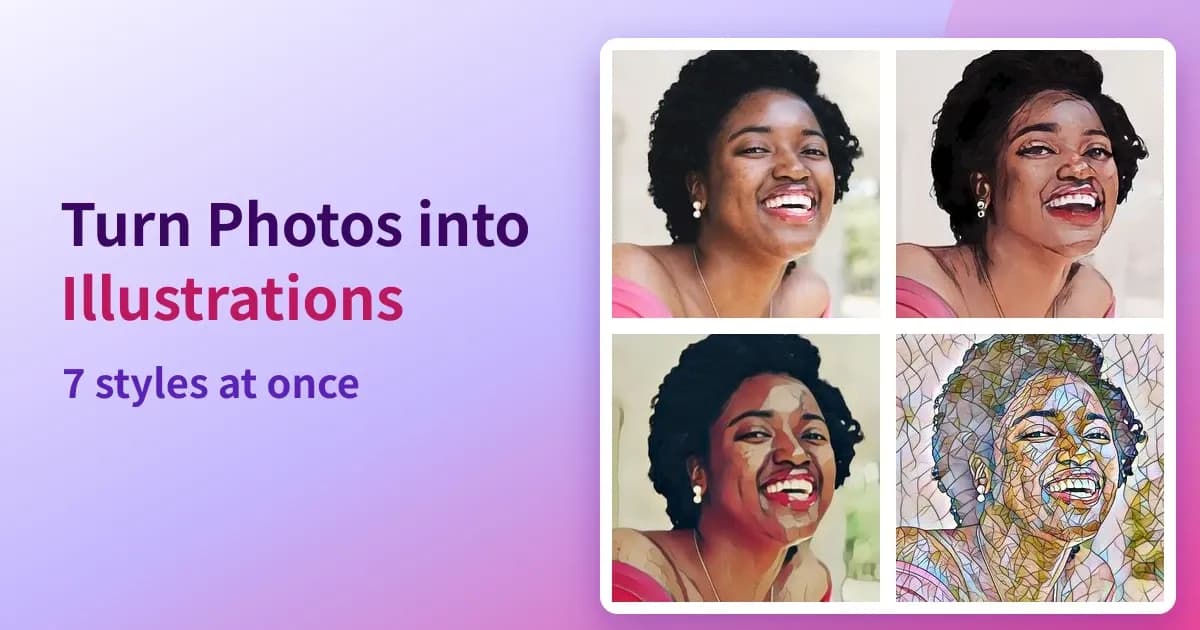
Using your own photo as a social media avatar can feel like too much exposure, while commissioning an illustration is more than the occasion calls for. There are plenty of apps that turn a photo into an illustration, but most of them are built around uploading it to a server, which means handing your face to another company, and some free tiers add a watermark or cap how many images you can generate.
This article explains how to use the stylizer in "Media Tools", which I built, to convert a photo into seven styles at once without sending it anywhere. Everything runs inside the browser.
What You'll Learn from This Article
- How to turn a photo into seven illustration styles in one pass
- How it compares with redrawing via an image-generation AI (a diffusion model)
- How long it takes on an integrated GPU
All you need is the photo and a browser. There is no app to install, no account and no fee, and the photo is never uploaded.
Seven styles in a single pass
One run produces seven styles at the same time. Which one suits a given photo varies, and the names alone tell you very little about how the result will look, so rather than choosing first and generating second, the tool generates everything and lets you choose afterwards.

The top-left tile is the original and the rest are the seven generated styles. The remaining three on the top row (1–3) are illustration styles trained on people, and the four on the bottom row (4–7) are painting styles that apply a painter's brushwork; the former run on "AnimeGANv2" and the latter on "fast-neural-style", which are entirely separate mechanisms.
No. | Style | What it suits |
|---|---|---|
1 | Illustration (portrait) | Avatars. Skin and hair smooth out and outlines appear |
2 | Anime (Paprika) | When you want the background painted too. Colours deepen |
3 | Sketch-like | Simple avatars. Shading is reduced |
4 | Oil paint (Candy) | When you want something decorative |
5 | Mosaic | A stained-glass texture |
6 | Pointillism | Redrawn as a field of coloured dots |
7 | Abstract (Udnie) | When you want coarser brushwork |
The one I actually use is number 1. The face and composition stay put while only the texture becomes drawn, which is what you want from an avatar that still reads as you. I reach for number 2 when the background should be painted as well, and number 3 when I want it pared right back.
What to prepare
- The photo you want to convert (JPG, PNG, WebP and HEIC can be loaded as they are)
- A browser (Chrome, Edge, Safari or Firefox)
- About 50MB of traffic on the first run, to fetch the seven models
There is no Python environment to set up and no need for a PC with a discrete GPU. Where WebGPU is available it runs on the GPU, and where it is not it falls back to the CPU.
How to convert
There are three steps: load the photo, press "Run", and save the ones you like.

Free tool that converts a photo into seven illustration, anime, oil paint and pointillism styles with AI. For social media avatars and profile pictures. Processed in your browser, so photos are never sent anywhere.
 media.tools.ryusei.io
- Open the stylizer page in your browser.
- Drop in the photo you want to convert, or click to select it.
- Check that "Style" is set to "All (7 styles)" and press "Run".

The seven results appear as thumbnails; clicking one saves it, and there is a ZIP option to save them together. If you already know which style you want, selecting just that one under "Style" generates only that image and finishes sooner.
The first run has to fetch all seven models, and on my machine (Radeon 780M / WebGPU) that took 42.53 seconds. From the second run onward the models are kept in the browser, so the same photo finishes in 7.85 seconds. That is seven images, which works out at about 1.1 seconds each.
The aspect ratio is preserved
The image is scaled down before processing, but only the long side is capped — 1280 pixels on WebGPU and 720 on the CPU — and the proportions are kept. The result is scaled back to the original size, so a tall photo is never cropped into a square.
If you want a square for an avatar, cropping before or after the conversion both work, though I prefer to crop first. Fixing where the face sits before comparing the styles makes it easier to judge the results.
How it compares with redrawing via an image-generation AI (a diffusion model)
The same site also has a separate tool that redraws a photo with a Stable Diffusion style model. Both aim to turn a photo into an illustration, but the mechanism and the hardware they need differ.
Stylizer (this article) | AI illustration (diffusion) | |
|---|---|---|
Model size | 50MB total | 2.1GB |
WebGPU | Runs without it | Required |
Choosing a style | Pick from seven | Free-form prompt |
Composition and face | Preserved | Drift as the strength rises |
I measured the difference on one machine: a Windows 11 PC with an RTX 2060 SUPER, running the same photo through both tools.
Tool | Images | First run (model included) | Second run | Per image |
|---|---|---|---|---|
Stylizer | 7 | 39.84 s | 5.66 s | 0.81 s |
AI illustration (diffusion) | 2 | 635.78 s | 25.07 s | 12.5 s |
That is a 15× difference per image, and the first run alone spends over ten minutes downloading 2.1GB. In exchange the diffusion model takes a free-form prompt and redraws the picture from the photo, so it gives more freedom over the result.
Here is how I split them. If all you want is an avatar, the tool in this article is enough. Producing seven options in six seconds and picking one beats spending twelve seconds on a single image, and the fact that the face does not change suits an avatar. I only reach for the diffusion model when I want to specify the style in detail or build something up as a picture.

What to do when a small image turns blurry the moment you enlarge it. Here is how to upscale 2× or 4× with AI entirely inside your browser, with a side-by-side against a plain resize and the processing times I measured.
An integrated GPU is enough
I ran the same tool on a Linux machine with no discrete GPU, using the integrated Radeon 780M.
Machine | First run | Second run (7 images) |
|---|---|---|
RTX 2060 SUPER / Windows 11 | 39.84 s | 5.66 s |
Radeon 780M (integrated) / Linux | 42.53 s | 7.85 s |
The gap is only about 1.4×. The models are around 8MB each and the computation is light, so my read is that the work finishes before a discrete GPU can bring its advantage to bear. For this tool, an integrated GPU is not a problem.
Frequently asked questions
Is it free?
Yes. There is no account and no login, no limit on how many images you can process, and no watermark.
Is my photo sent to a server?
No. The AI processing runs inside the browser, so the photo you load never leaves your device, and the only thing fetched on the first run is the model files. Apart from downloading the models, Media Tools sends processing statistics (such as the tool and settings used and the device specs) to the site's server, but these do not include the photo itself, file names or IP addresses. You can turn this off with the "Send processing statistics" switch near the bottom of the page.
Will it caricature me?
No. The composition and the face are preserved and only the texture changes, so you do not end up with exaggerated features.
Can I specify my own style?
No. This tool offers seven presets. For a free-form prompt, use "AI illustration (diffusion)" on the same site. Its model is 2.1GB and it requires WebGPU, but the freedom is far greater.
Can I use it on a phone?
Yes. The first run involves about 50MB of traffic, which is a practical amount even on mobile data.
Does it work on landscapes?
Yes. The four painting styles suit landscapes and buildings well. The three illustration styles were trained on people, so results are steadier on photos with a person in them.
Summary
Turning a photo into an illustration takes no upload and no account. Load the photo, press "Run", and seven styles arrive at once.
- Seven styles are generated together so you choose from finished results
- "Illustration (portrait)" is the easiest to work with for an avatar
- The composition and the face do not change; nothing is caricatured
- 5.66 seconds for seven images on an RTX 2060 SUPER, 7.85 on an integrated GPU
- Reach for the diffusion model only when you need a free-form prompt
Related articles and tools

How to restore a scanned old photo whose faces have collapsed into grain, or a picture that blurred when enlarged. Everything runs inside the browser, so the photo is never sent anywhere, and there is no account and no fee. Group photos are handled in one pass.

Convert, compress and edit images, audio and video entirely in your browser, with AI upscaling and background removal. Free, no upload, no size limit, no sign-up.
 media.tools.ryusei.io
 Programing
 Python
 Hosting