 Programing
 Next.js
 Iline Developer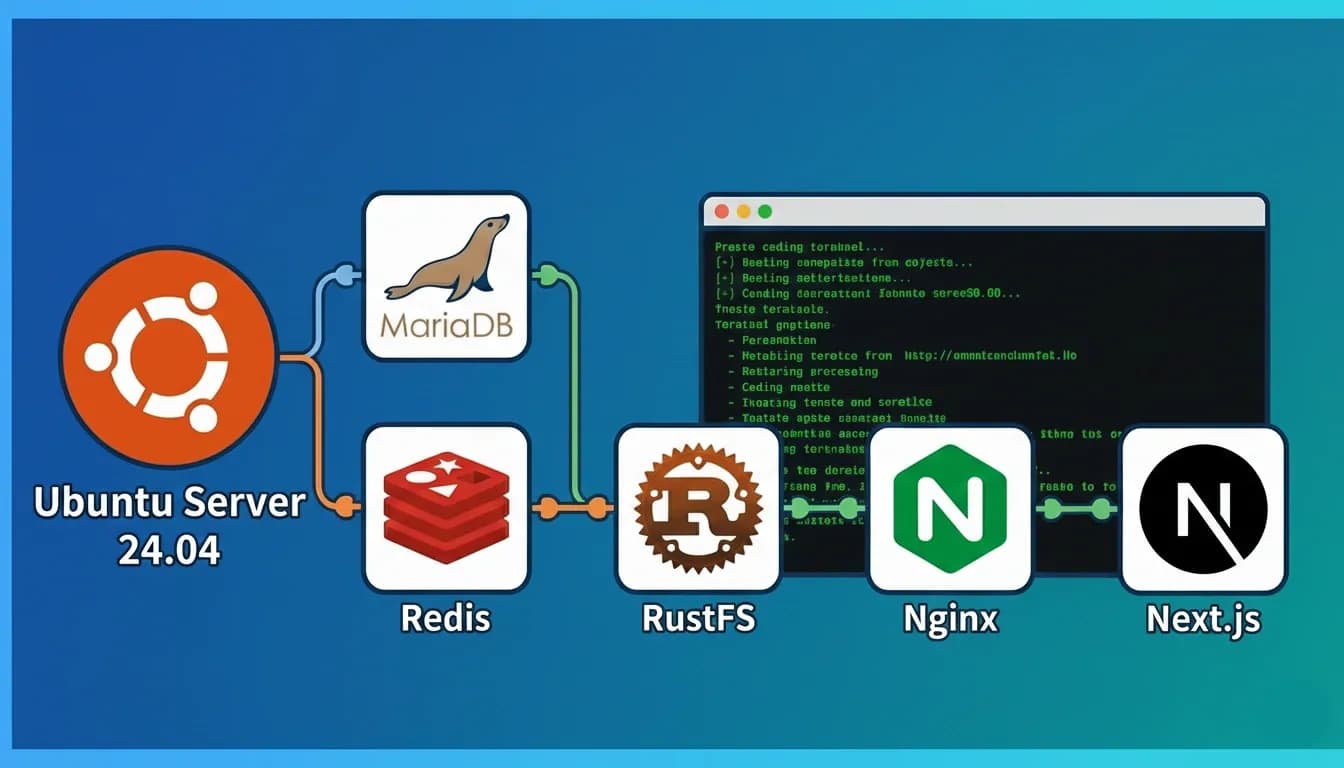
This guide documents the installation process for various tools required for web application development on an Ubuntu Server 24.04 environment. We will be installing the latest versions of MariaDB, Redis, RustFS, Nginx, and Next.js.
Prerequisite Environment
- OS: Ubuntu Server 24.04
- User privileges: Users with sudo privileges
1. Installing MariaDB
First, install MariaDB as the database.
sudo apt update
sudo apt install -y mariadb-server
After installation, verify that MariaDB starts successfully.
sudo systemctl status mariadbInitial Setup for MariaDB
Run mariadb-secure-installation for enhanced security.
$ sudo mariadb-secure-installation

NOTE: RUNNING ALL PARTS OF THIS SCRIPT IS RECOMMENDED FOR ALL MariaDB
      SERVERS IN PRODUCTION USE!  PLEASE READ EACH STEP CAREFULLY!

In order to log into MariaDB to secure it, we'll need the current
password for the root user. If you've just installed MariaDB, and
haven't set the root password yet, you should just press enter here.

Enter current password for root (enter for none):
OK, successfully used password, moving on...

Setting the root password or using the unix_socket ensures that nobody
can log into the MariaDB root user without the proper authorisation.

You already have your root account protected, so you can safely answer 'n'.

Switch to unix_socket authentication [Y/n] y
Enabled successfully!
Reloading privilege tables..
 ... Success!

You already have your root account protected, so you can safely answer 'n'.

Change the root password? [Y/n] y
New password:
Re-enter new password:
Password updated successfully!
Reloading privilege tables..
 ... Success!

By default, a MariaDB installation has an anonymous user, allowing anyone
to log into MariaDB without having to have a user account created for
them.  This is intended only for testing, and to make the installation
go a bit smoother.  You should remove them before moving into a
production environment.

Remove anonymous users? [Y/n] y
 ... Success!

Normally, root should only be allowed to connect from 'localhost'.  This
ensures that someone cannot guess at the root password from the network.

Disallow root login remotely? [Y/n] y
 ... Success!

By default, MariaDB comes with a database named 'test' that anyone can
access.  This is also intended only for testing, and should be removed
before moving into a production environment.

Remove test database and access to it? [Y/n] y
 - Dropping test database...
 ... Success!
 - Removing privileges on test database...
 ... Success!


Reloading the privilege tables will ensure that all changes made so far
will take effect immediately.

Reload privilege tables now? [Y/n] y
 ... Success!

Cleaning up...

All done!  If you've completed all of the above steps, your MariaDB
installation should now be secure.

Thanks for using MariaDB!
This completes the security configuration for MariaDB.
2. Redis Installation
Next, install Redis as your cache store. Since Redis is officially available as an apt package, installation is straightforward.
sudo apt install -y redis-serverI edited the Redis configuration file to set it up for systemd management and configured password authentication.
sudo nano /etc/redis/redis.confThe following items have been modified:
# Enable systemd management
supervised systemd

# Configure password authentication (uncomment requirepass and set a strong password)
# Exsample: requirepass your_strong_password_here
requirepass your_strong_password_here
Restart Redis to apply the configuration.
sudo systemctl restart redis-server
sudo systemctl enable redis-server
Just to be safe, check whether password authentication is enabled.
# Confirm that you cannot connect without a password
redis-cli ping
# (error) NOAUTH Authentication required.

# Connect with password
redis-cli -a your_strong_password_here ping
# PONG
Alternatively, you can authenticate by entering redis-cli.
redis-cli
127.0.0.1:6379> AUTH your_strong_password_here
OK
127.0.0.1:6379> ping
PONG
This completes the Redis security configuration.
Redis official website: ⤵

Developers love Redis. Unlock the full potential of the Redis database with Redis Enterprise and start building blazing fast apps.
3. Installing RustFS
I have installed RustFS as an object storage system. RustFS is an S3-compatible high-performance object storage system written in the Rust programming language, licensed under the Apache 2.0 license. Claimed to be 2.3 times faster than MinIO when handling small 4KB objects, it achieves both memory safety and exceptional performance.
RustFS is a high-performance, Limitless Scalability, secure and reliable distributed storage system built with Rust, S3 protocol compatible, supporting multi-cloud storage.
Reasons for Choosing RustFS
Previously we used MinIO, but in October 2025, MinIO stopped providing official Docker images and effectively discontinued open-source development, transitioning to maintenance mode. This prompted us to look for an alternative object storage solution. RustFS shares a similar architecture to MinIO but leverages Rust's characteristics to have no garbage collection-induced latency spikes, is business-friendly under the Apache 2.0 license, and excels in terms of data privacy due to its lack of telemetry features.
Downloading installation package
First, I used wget to download the latest version of RustFS.
# Download RustFS
wget https://dl.rustfs.com/artifacts/rustfs/release/rustfs-linux-x86_64-musl-latest.zip
unzip rustfs-linux-x86_64-musl-latest.zip
chmod +x rustfs
sudo mv rustfs /usr/local/bin/
Setting Environment Variables
Configuration file created. Configuring in single-node, single-disk mode.
sudo tee /etc/default/rustfs <<EOF
RUSTFS_ACCESS_KEY=rustfsadmin
RUSTFS_SECRET_KEY=rustfsadmin
RUSTFS_VOLUMES="/data/rustfs0"
RUSTFS_ADDRESS=":9000"
RUSTFS_CONSOLE_ENABLE=true
RUST_LOG=error
RUSTFS_OBS_LOG_DIRECTORY="/var/logs/rustfs/"
EOF
About deployment modes
RustFS supports three deployment modes. For development purposes, we've adopted the single-node/single-disk mode, but for production environments or other scale requirements, other modes can also be selected.
1. Single-node, single-disk mode (adopted in this case)
- one server, one disk
- Ideal for development and testing environments
- Most simple configuration
- No redundancy
2. Single-Node Multi-Disk Mode
- One server, multiple disks
- Redundancy ensured through erasure coding
- Fault tolerance against disk failures
- JBOD mode (without RAID controller) is recommended
Example configuration:
RUSTFS_VOLUMES="/data/rustfs0 /data/rustfs1 /data/rustfs2 /data/rustfs3"3. Multi-node, multi-disk mode (distributed cluster)
- At least 4 servers, with at least one disk per server
- By default, 12+4 erasure coding (12 data + 4 parity)
- High availability for multiple server failures
- Recommended for production and enterprise use
Configuration example (4 nodes × 4 disks):
RUSTFS_VOLUMES="http://node1:9000/data/rustfs{0...3} http://node2:9000/data/rustfs{0...3} http://node3:9000/data/rustfs{0...3} http://node4:9000/data/rustfs{0...3}"In distributed cluster mode, a peer-to-peer structure without metadata servers eliminates single points of failure.
Create Storage Directory
Created a directory to store data and logs.
sudo mkdir -p /data/rustfs0 /var/logs/rustfs /opt/tls
sudo chmod -R 750 /data/rustfs* /var/logs/rustfs
About recommended filesystems for production environments
The RustFS official documentation strongly recommends using the XFS file system for production storage disks. RustFS's development and testing are conducted with XFS as the baseline, ensuring optimal performance and stability. Using other file systems like ext4, BTRFS, or ZFS may result in performance degradation or unexpected issues.
XFS excels at high concurrency and handling large files, making it ideal for object storage systems like RustFS. To format a disk using XFS, use the following command:
# Verify Disk
sudo lsblk

# Format with XFS (e.g., for /dev/nvme0n1)
# -i size=512: Set inode size to 512 bytes (improves metadata performance for small objects)
# -n ftype=1: Enable file type feature (improves performance for readdir/unlink operations)
# -L RUSTFS0: Set label
sudo mkfs.xfs -i size=512 -n ftype=1 -L RUSTFS0 /dev/nvme0n1

# Append to /etc/etc/fstab for mounting configuration
echo "LABEL=RUSTFS0 /data/rustfs0 xfs defaults,noatime,nodiratime 0 0" | sudo tee -a /etc/fstab

# mount
sudo mount -a
Configure System Services
create systemd service file.
sudo tee /etc/systemd/system/rustfs.service <<EOF
[Unit]
Description=RustFS Object Storage Server
Documentation=https://rustfs.com/docs/
After=network-online.target
Wants=network-online.target

[Service]
Type=notify
NotifyAccess=main
User=root
Group=root

WorkingDirectory=/usr/local
EnvironmentFile=-/etc/default/rustfs
ExecStart=/usr/local/bin/rustfs \$RUSTFS_VOLUMES

LimitNOFILE=1048576
LimitNPROC=32768
TasksMax=infinity

Restart=always
RestartSec=10s

OOMScoreAdjust=-1000
SendSIGKILL=no

TimeoutStartSec=30s
TimeoutStopSec=30s

NoNewPrivileges=true

ProtectHome=true
PrivateTmp=true
PrivateDevices=true
ProtectClock=true
ProtectKernelTunables=true
ProtectKernelModules=true
ProtectControlGroups=true
RestrictSUIDSGID=true
RestrictRealtime=true

# service log configuration
StandardOutput=append:/var/logs/rustfs/rustfs.log
StandardError=append:/var/logs/rustfs/rustfs-err.log

[Install]
WantedBy=multi-user.target
EOF
Reload service settings.
sudo systemctl daemon-reloadStart and verify the service
RustFS service started and auto-start enabled.
sudo systemctl enable --now rustfsCheck the status of the service.
sudo systemctl status rustfsThis completes the installation and configuration of RustFS. By default, you can access it on port 9000.
4. Installing Nginx
I installed the latest version of Nginx as a reverse proxy. To fetch the latest release from the official repository, I first added the repository.
# Install required packages
sudo apt install -y curl gnupg2 ca-certificates lsb-release ubuntu-keyring

# Download Nginx Official Signature Key
curl https://nginx.org/keys/nginx_signing.key | gpg --dearmor \
    | sudo tee /usr/share/keyrings/nginx-archive-keyring.gpg >/dev/null

# Verify Signature Key
gpg --dry-run --quiet --no-keyring --import --import-options import-show /usr/share/keyrings/nginx-archive-keyring.gpg

# Nadd stable repository for ginx
echo "deb [signed-by=/usr/share/keyrings/nginx-archive-keyring.gpg] \
http://nginx.org/packages/ubuntu `lsb_release -cs` nginx" \
    | sudo tee /etc/apt/sources.list.d/nginx.list

# Set repository priority
echo -e "Package: *\nPin: origin nginx.org\nPin: release o=nginx\nPin-Priority: 900\n" \
    | sudo tee /etc/apt/preferences.d/99nginx

# Update package lists and install Nginx
sudo apt update
sudo apt install -y nginx
Check the installed version.
$ nginx -v
nginx version: nginx/1.28.1
built by gcc 13.3.0 (Ubuntu 13.3.0-6ubuntu2~24.04)
built with OpenSSL 3.0.13 30 Jan 2024
TLS SNI support enabled
configure arguments: --prefix=/etc/nginx --sbin-path=/usr/sbin/nginx --modules-path=/usr/lib/nginx/modules --conf-path=/etc/nginx/nginx.conf --error-log-path=/var/log/nginx/error.log --http-log-path=/var/log/nginx/access.log --pid-path=/run/nginx.pid --lock-path=/run/nginx.lock --http-client-body-temp-path=/var/cache/nginx/client_temp --http-proxy-temp-path=/var/cache/nginx/proxy_temp --http-fastcgi-temp-path=/var/cache/nginx/fastcgi_temp --http-uwsgi-temp-path=/var/cache/nginx/uwsgi_temp --http-scgi-temp-path=/var/cache/nginx/scgi_temp --user=nginx --group=nginx --with-compat --with-file-aio --with-threads --with-http_addition_module --with-http_auth_request_module --with-http_dav_module --with-http_flv_module --with-http_gunzip_module --with-http_gzip_static_module --with-http_mp4_module --with-http_random_index_module --with-http_realip_module --with-http_secure_link_module --with-http_slice_module --with-http_ssl_module --with-http_stub_status_module --with-http_sub_module --with-http_v2_module --with-http_v3_module --with-mail --with-mail_ssl_module --with-stream --with-stream_realip_module --with-stream_ssl_module --with-stream_ssl_preread_module --with-cc-opt='-g -O2 -fno-omit-frame-pointer -mno-omit-leaf-frame-pointer -ffile-prefix-map=/home/builder/debuild/nginx-1.28.1/debian/debuild-base/nginx-1.28.1=. -flto=auto -ffat-lto-objects -fstack-protector-strong -fstack-clash-protection -Wformat -Werror=format-security -fcf-protection -fdebug-prefix-map=/home/builder/debuild/nginx-1.28.1/debian/debuild-base/nginx-1.28.1=/usr/src/nginx-1.28.1-1~noble -fPIC' --with-ld-opt='-Wl,-Bsymbolic-functions -flto=auto -ffat-lto-objects -Wl,-z,relro -Wl,-z,now -Wl,--as-needed -pie'
Start Nginx and enable auto-start.
sudo systemctl start nginx
sudo systemctl enable nginx
Make sure HTTP/HTTPS is permitted by the firewall.
sudo ufw allow 'Nginx Full'5. Setting Up Next.js
To use Next.js, I first installed the latest LTS version of Node.js.
Installing Node.js
I installed the latest version of Node.js using nvm.
# Installing nvm
curl -o- https://raw.githubusercontent.com/nvm-sh/nvm/v0.40.0/install.sh | bash

# enable nvm
source ~/.bashrc

# Installing ode.js LTNS version
nvm install --lts
nvm use --lts
Check Node.js and npm versions.
$ node --version
v24.12.0
$ npm --version
11.7.0
The official installation guide is here⤵
Node.js® is a free, open-source, cross-platform JavaScript runtime environment that lets developers create servers, web apps, command line tools and scripts.
Creating a Next.js Project
Created a project using the latest version of Next.js.
npx create-next-app@latest my-appIn the interactive selection, you chose the following:
- TypeScript: Yes
- ESLint: Yes
- Tailwind CSS: Yes
src/directory: Yes- App Router: Yes
- Turbopack: Yes
About Options for "create-next-app"
Options | Description |
|---|---|
| Show all available options |
| Output the version number |
| Negate default options. E.g. |
| Initialize as a TypeScript project (default) |
| Initialize as a JavaScript project |
| Initialize with Tailwind CSS config (default) |
| Initialize with React Compiler enabled |
| Initialize with ESLint config |
| Initialize with Biome config |
| Skip linter configuration |
| Initialize as an App Router project |
| Initialize a project with only route handlers |
| Initialize inside a |
| Force enable Turbopack in generated package.json (enabled by default) |
| Force enable Webpack in generated package.json |
| Specify import alias to use (default "@/*") |
| Initialize an empty project |
| Explicitly tell the CLI to bootstrap the application using npm |
| Explicitly tell the CLI to bootstrap the application using pnpm |
| Explicitly tell the CLI to bootstrap the application using Yarn |
| Explicitly tell the CLI to bootstrap the application using Bun |
| An example to bootstrap the app with |
| Specify the path to the example separately |
| Explicitly tell the CLI to reset any stored preferences |
| Explicitly tell the CLI to skip installing packages |
| Explicitly tell the CLI to disable git initialization |
| Use previous preferences or defaults for all options |
The usage instructions for "create--next-app" can be found in the official documentation.
Create Next.js apps using one command with the create-next-app CLI.
Navigate to the project directory and start the development server.
cd my-app
npm run dev
Conclusion
The following tools required for web application development have been installed on the Ubuntu Server 24.04 environment:
- MariaDB: Databases (with security settings)
- Redis: Cache Store
- RustFS: Object Storage
- Nginx: Reverse Proxy
- Next.js: A React Framework
With this, you have now set up the basic development environment for web applications. You can customize the detailed settings of each tool according to your project requirements.
 Python
 Hosting