 Next.js
 プログラミング
 個人開発
個人開発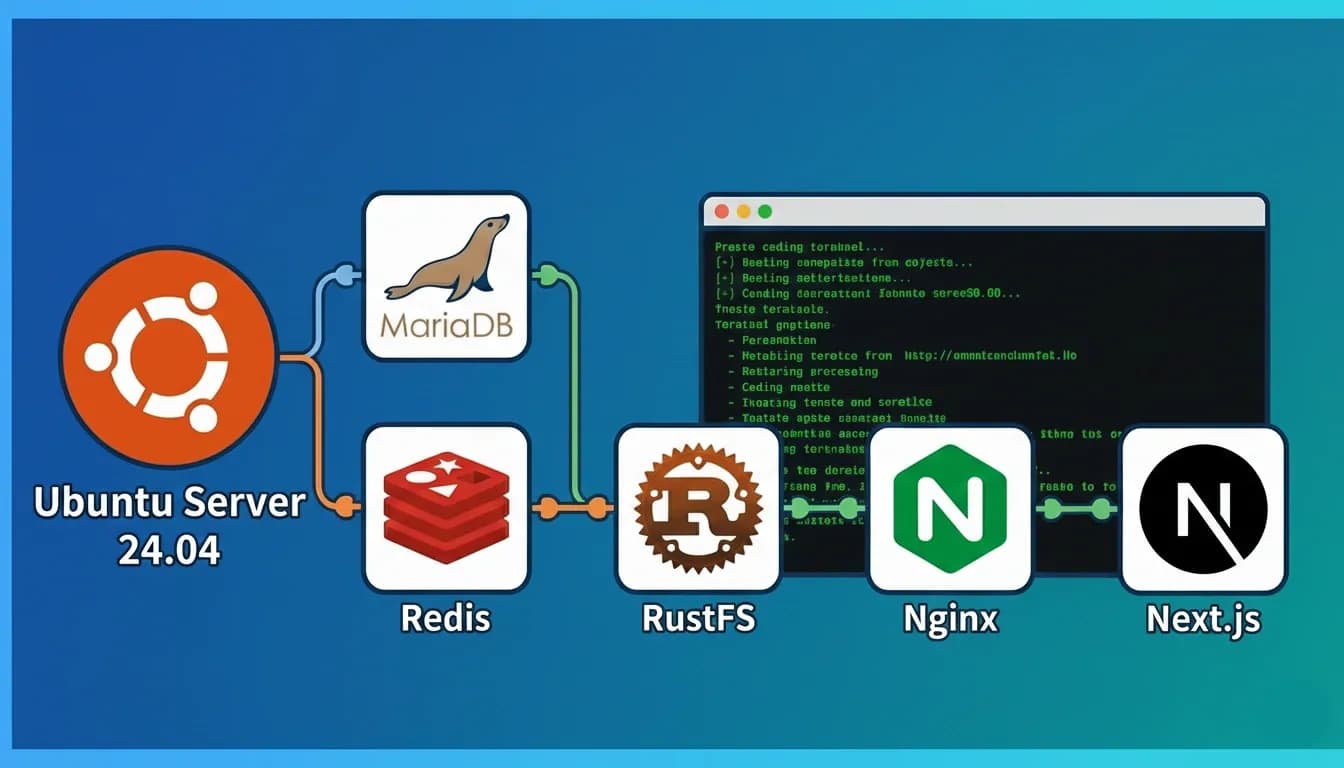
今回はUbuntu Server 24.04環境でWebアプリケーション開発に必要な各種ツールをインストールした手順をまとめました。MariaDB、Redis、RustFS、Nginx、Next.jsの最新版を導入していきます。
前提環境
- OS: Ubuntu Server 24.04
- ユーザー権限: sudo権限を持つユーザー
1. MariaDBのインストール
まず、データベースとしてMariaDBをインストール。
sudo apt update
sudo apt install -y mariadb-server
インストール後、MariaDBが正常に起動しているか確認。
sudo systemctl status mariadbMariaDBの初期設定
セキュリティ強化のため、mariadb-secure-installationを実行。
$ sudo mariadb-secure-installation

NOTE: RUNNING ALL PARTS OF THIS SCRIPT IS RECOMMENDED FOR ALL MariaDB
      SERVERS IN PRODUCTION USE!  PLEASE READ EACH STEP CAREFULLY!

# MariaDBにログインするため、現在のrootユーザーのパスワードが必要
# インストール直後でrootパスワード未設定の場合は、Enterを押す
In order to log into MariaDB to secure it, we'll need the current
password for the root user. If you've just installed MariaDB, and
haven't set the root password yet, you should just press enter here.

Enter current password for root (enter for none):
OK, successfully used password, moving on...

# unix_socket認証に切り替えるか(推奨)
Setting the root password or using the unix_socket ensures that nobody
can log into the MariaDB root user without the proper authorisation.

You already have your root account protected, so you can safely answer 'n'.

Switch to unix_socket authentication [Y/n] y
Enabled successfully!
Reloading privilege tables..
 ... Success!

# rootパスワードを変更するか
You already have your root account protected, so you can safely answer 'n'.

Change the root password? [Y/n] y
New password:
Re-enter new password:
Password updated successfully!
Reloading privilege tables..
 ... Success!

# 匿名ユーザーを削除するか(推奨)
# デフォルトでテスト用の匿名ユーザーが存在
# 本番環境では削除すべき
By default, a MariaDB installation has an anonymous user, allowing anyone
to log into MariaDB without having to have a user account created for
them.  This is intended only for testing, and to make the installation
go a bit smoother.  You should remove them before moving into a
production environment.

Remove anonymous users? [Y/n] y
 ... Success!

# rootのリモートログインを禁止するか(推奨)
# 通常、rootはlocalhostからのみ接続可能にすべき
Normally, root should only be allowed to connect from 'localhost'.  This
ensures that someone cannot guess at the root password from the network.

Disallow root login remotely? [Y/n] y
 ... Success!

# testデータベースとそのアクセス権を削除するか(推奨)
# デフォルトで誰でもアクセスできる'test'データベースが存在
# テスト用なので、本番環境では削除すべき
By default, MariaDB comes with a database named 'test' that anyone can
access.  This is also intended only for testing, and should be removed
before moving into a production environment.

Remove test database and access to it? [Y/n] y
 - Dropping test database...
 ... Success!
 - Removing privileges on test database...
 ... Success!

# 権限テーブルを今すぐリロードするか(推奨)
# これまでの変更を即座に反映
Reloading the privilege tables will ensure that all changes made so far
will take effect immediately.

Reload privilege tables now? [Y/n] y
 ... Success!

Cleaning up...

All done!  If you've completed all of the above steps, your MariaDB
installation should now be secure.

Thanks for using MariaDB!
これでMariaDBのセキュリティ設定は完了です。
2. Redisのインストール
次に、キャッシュストアとしてRedisをインストールします。Redisはaptパッケージとして公式に提供されているのでインストールが簡単です。
sudo apt install -y redis-serverRedisの設定ファイルを編集して、systemdで管理されるように設定し、パスワード認証も設定しました。
sudo nano /etc/redis/redis.conf以下の項目を変更しました:
# systemdでの管理を有効化
supervised systemd

# パスワード認証の設定(requirepassのコメントを外して強力なパスワードを設定)
# 例:requirepass your_strong_password_here
requirepass your_strong_password_here
Redisを再起動して設定を反映させます。
sudo systemctl restart redis-server
sudo systemctl enable redis-server
念のため、パスワード認証が有効になっているか確認します。
# パスワードなしでは接続できないことを確認
redis-cli ping
# (error) NOAUTH Authentication required.

# パスワードを指定して接続
redis-cli -a your_strong_password_here ping
# PONGまたは、redis-cliに入ってから認証することもできます。
redis-cli
127.0.0.1:6379> AUTH your_strong_password_here
OK
127.0.0.1:6379> ping
PONG
これでRedisのセキュリティ設定は完了です。
Redisの公式サイトは以下⤵

Developers love Redis. Unlock the full potential of the Redis database with Redis Enterprise and start building blazing fast apps.
3. RustFSのインストール
オブジェクトストレージとしてRustFSをインストールしました。RustFSはRust言語で書かれたS3互換の高性能オブジェクトストレージシステムで、Apache 2.0ライセンスで提供されています。4KBの小さなオブジェクトでMinIOと比較して2.3倍高速と謳われており、メモリ安全性とパフォーマンスを両立しています。
RustFS is a high-performance, Limitless Scalability, secure and reliable distributed storage system built with Rust, S3 protocol compatible, supporting multi-cloud storage.
RustFSを選んだ理由
以前はMinIOを使用していましたが、2025年10月にMinIOが公式Dockerイメージの提供を停止し、さらにオープンソース版の開発を実質的に終了してメンテナンスモードに移行したため、代替となるオブジェクトストレージを探していました。RustFSはMinIOと同様のアーキテクチャを持ちながら、Rustの特性を活かしてガベージコレクションによるレイテンシスパイクがなく、Apache 2.0ライセンスでビジネスフレンドリーです。また、テレメトリ機能がないためデータプライバシーの観点でも優れています。
インストールパッケージのダウンロード
まず、wgetを使ってRustFSの最新版をダウンロードしました。
# RustFSのダウンロード
wget https://dl.rustfs.com/artifacts/rustfs/release/rustfs-linux-x86_64-musl-latest.zip
unzip rustfs-linux-x86_64-musl-latest.zip
chmod +x rustfs
sudo mv rustfs /usr/local/bin/
環境変数の設定
設定ファイルを作成しました。シングルノード・シングルディスクモードで構成しています。
sudo tee /etc/default/rustfs <<EOF
RUSTFS_ACCESS_KEY=rustfsadmin
RUSTFS_SECRET_KEY=rustfsadmin
RUSTFS_VOLUMES="/data/rustfs0"
RUSTFS_ADDRESS=":9000"
RUSTFS_CONSOLE_ENABLE=true
RUST_LOG=error
RUSTFS_OBS_LOG_DIRECTORY="/var/logs/rustfs/"
EOF
デプロイメントモードについて
RustFSは以下の3つのデプロイメントモードをサポートしています。今回は開発環境向けのシングルノード・シングルディスクモードを採用しましたが、本番環境や規模に応じて他のモードも選択できます。
1. シングルノード・シングルディスクモード(今回採用)
- 1台のサーバー、1つのディスク
- 開発・テスト環境に最適
- 設定が最もシンプル
- 冗長性なし
2. シングルノード・マルチディスクモード
- 1台のサーバー、複数のディスク
- イレイジャーコーディングによる冗長性確保
- ディスク障害に対する耐障害性
- JBODモード(RAIDコントローラー不使用)を推奨
設定例:
RUSTFS_VOLUMES="/data/rustfs0 /data/rustfs1 /data/rustfs2 /data/rustfs3"3. マルチノード・マルチディスクモード(分散クラスター)
- 最小4台のサーバー、各サーバーに最低1つのディスク
- デフォルトで12+4のイレイジャーコーディング(12データ+4パリティ)
- 複数サーバー障害に対する高可用性
- 本番環境・エンタープライズ用途に推奨
設定例(4ノード×4ディスク):
RUSTFS_VOLUMES="http://node1:9000/data/rustfs{0...3} http://node2:9000/data/rustfs{0...3} http://node3:9000/data/rustfs{0...3} http://node4:9000/data/rustfs{0...3}"分散クラスターモードでは、メタデータサーバー不要のピアツーピア構造により、単一障害点が存在しません。
ストレージディレクトリの作成
データとログを保存するディレクトリを作成しました。
sudo mkdir -p /data/rustfs0 /var/logs/rustfs /opt/tls
sudo chmod -R 750 /data/rustfs* /var/logs/rustfs
本番環境で推奨されるファイルシステムについて
RustFS公式ドキュメントでは、本番環境でのストレージディスクにはXFSファイルシステムの使用を強く推奨しています。RustFSの開発とテストはXFSベースで行われており、最適なパフォーマンスと安定性が保証されています。ext4、BTRFS、ZFSなど他のファイルシステムではパフォーマンス低下や予期しない問題が発生する可能性があります。
XFSは高並行性と大容量ファイルの処理に優れており、RustFSのようなオブジェクトストレージに最適です。XFSでディスクをフォーマットする場合は以下のコマンドを使用します。
# ディスクの確認
sudo lsblk

# XFSでフォーマット(例:/dev/nvme0n1の場合)
# -i size=512: iノードサイズを512バイトに設定(小さなオブジェクトのメタデータ性能向上)
# -n ftype=1: ファイルタイプ機能を有効化(readdir/unlink操作の性能向上)
# -L RUSTFS0: ラベルを設定
sudo mkfs.xfs -i size=512 -n ftype=1 -L RUSTFS0 /dev/nvme0n1

# /etc/fstabに追記してマウント設定
echo "LABEL=RUSTFS0 /data/rustfs0 xfs defaults,noatime,nodiratime 0 0" | sudo tee -a /etc/fstab

# マウント
sudo mount -a
システムサービスの設定
systemdサービスファイルを作成。
sudo tee /etc/systemd/system/rustfs.service <<EOF
[Unit]
Description=RustFS Object Storage Server
Documentation=https://rustfs.com/docs/
After=network-online.target
Wants=network-online.target

[Service]
Type=notify
NotifyAccess=main
User=root
Group=root

WorkingDirectory=/usr/local
EnvironmentFile=-/etc/default/rustfs
ExecStart=/usr/local/bin/rustfs \$RUSTFS_VOLUMES

LimitNOFILE=1048576
LimitNPROC=32768
TasksMax=infinity

Restart=always
RestartSec=10s

OOMScoreAdjust=-1000
SendSIGKILL=no

TimeoutStartSec=30s
TimeoutStopSec=30s

NoNewPrivileges=true

ProtectHome=true
PrivateTmp=true
PrivateDevices=true
ProtectClock=true
ProtectKernelTunables=true
ProtectKernelModules=true
ProtectControlGroups=true
RestrictSUIDSGID=true
RestrictRealtime=true

# service log configuration
StandardOutput=append:/var/logs/rustfs/rustfs.log
StandardError=append:/var/logs/rustfs/rustfs-err.log

[Install]
WantedBy=multi-user.target
EOF
サービス設定をリロード。
sudo systemctl daemon-reloadサービスの起動と確認
RustFSサービスを起動して、自動起動を有効化しました。
sudo systemctl enable --now rustfsサービスの状態を確認。
sudo systemctl status rustfsこれでRustFSのインストールと設定が完了しました。デフォルトではポート9000でアクセスできます。
4. Nginxのインストール
リバースプロキシとしてNginxの最新版をインストールしました。公式リポジトリから最新版を取得するため、まずリポジトリを追加しました。
# 必要なパッケージをインストール
sudo apt install -y curl gnupg2 ca-certificates lsb-release ubuntu-keyring

# Nginx公式の署名キーをダウンロード
curl https://nginx.org/keys/nginx_signing.key | gpg --dearmor \
    | sudo tee /usr/share/keyrings/nginx-archive-keyring.gpg >/dev/null

# 署名キーの検証
gpg --dry-run --quiet --no-keyring --import --import-options import-show /usr/share/keyrings/nginx-archive-keyring.gpg

# Nginx安定版のリポジトリを追加
echo "deb [signed-by=/usr/share/keyrings/nginx-archive-keyring.gpg] \
http://nginx.org/packages/ubuntu `lsb_release -cs` nginx" \
    | sudo tee /etc/apt/sources.list.d/nginx.list

# リポジトリの優先度を設定
echo -e "Package: *\nPin: origin nginx.org\nPin: release o=nginx\nPin-Priority: 900\n" \
    | sudo tee /etc/apt/preferences.d/99nginx

# パッケージリストを更新してNginxをインストール
sudo apt update
sudo apt install -y nginx
インストールされたバージョンを確認。
$ nginx -v
nginx version: nginx/1.28.1
built by gcc 13.3.0 (Ubuntu 13.3.0-6ubuntu2~24.04)
built with OpenSSL 3.0.13 30 Jan 2024
TLS SNI support enabled
configure arguments: --prefix=/etc/nginx --sbin-path=/usr/sbin/nginx --modules-path=/usr/lib/nginx/modules --conf-path=/etc/nginx/nginx.conf --error-log-path=/var/log/nginx/error.log --http-log-path=/var/log/nginx/access.log --pid-path=/run/nginx.pid --lock-path=/run/nginx.lock --http-client-body-temp-path=/var/cache/nginx/client_temp --http-proxy-temp-path=/var/cache/nginx/proxy_temp --http-fastcgi-temp-path=/var/cache/nginx/fastcgi_temp --http-uwsgi-temp-path=/var/cache/nginx/uwsgi_temp --http-scgi-temp-path=/var/cache/nginx/scgi_temp --user=nginx --group=nginx --with-compat --with-file-aio --with-threads --with-http_addition_module --with-http_auth_request_module --with-http_dav_module --with-http_flv_module --with-http_gunzip_module --with-http_gzip_static_module --with-http_mp4_module --with-http_random_index_module --with-http_realip_module --with-http_secure_link_module --with-http_slice_module --with-http_ssl_module --with-http_stub_status_module --with-http_sub_module --with-http_v2_module --with-http_v3_module --with-mail --with-mail_ssl_module --with-stream --with-stream_realip_module --with-stream_ssl_module --with-stream_ssl_preread_module --with-cc-opt='-g -O2 -fno-omit-frame-pointer -mno-omit-leaf-frame-pointer -ffile-prefix-map=/home/builder/debuild/nginx-1.28.1/debian/debuild-base/nginx-1.28.1=. -flto=auto -ffat-lto-objects -fstack-protector-strong -fstack-clash-protection -Wformat -Werror=format-security -fcf-protection -fdebug-prefix-map=/home/builder/debuild/nginx-1.28.1/debian/debuild-base/nginx-1.28.1=/usr/src/nginx-1.28.1-1~noble -fPIC' --with-ld-opt='-Wl,-Bsymbolic-functions -flto=auto -ffat-lto-objects -Wl,-z,relro -Wl,-z,now -Wl,--as-needed -pie'
Nginxを起動して自動起動を有効化。
sudo systemctl start nginx
sudo systemctl enable nginx
ファイアウォールでHTTP/HTTPSを許可しておきます。
sudo ufw allow 'Nginx Full'5. Next.jsのセットアップ
Next.jsを使用するため、まずNode.jsの最新LTS版をインストールしました。
Node.jsのインストール
nvmを使って最新版のNode.jsをインストールしました。
# nvmのインストール
curl -o- https://raw.githubusercontent.com/nvm-sh/nvm/v0.40.0/install.sh | bash

# nvmを有効化
source ~/.bashrc

# Node.js LTS版のインストール
nvm install --lts
nvm use --lts
Node.jsとnpmのバージョンを確認。
$ node --version
v24.12.0
$ npm --version
11.7.0
公式のインストールガイドは以下⤵
Node.js® is a free, open-source, cross-platform JavaScript runtime environment that lets developers create servers, web apps, command line tools and scripts.
Next.jsプロジェクトの作成
Next.jsの最新版でプロジェクトを作成しました。
npx create-next-app@latest my-app対話形式で以下を選択しました:
- TypeScript: Yes
- ESLint: Yes
- Tailwind CSS: Yes
src/directory: Yes- App Router: Yes
- Turbopack: Yes
「create-next-app」のオプションについて
オプション | 説明 |
|---|---|
| 利用可能なすべてのオプションを表示 |
| バージョン番号を出力します |
| デフォルトオプションを無効化します。例: |
| TypeScriptプロジェクトとして初期化する(デフォルト) |
| JavaScriptプロジェクトとして初期化 |
| Tailwind CSS 設定で初期化 (デフォルト) |
| Reactコンパイラを有効にして初期化 |
| ESLint 設定で初期化 |
| バイオーム設定で初期化 |
| リンター設定をスキップ |
| App Routerプロジェクトとして初期化 |
| ルートハンドラのみを含むプロジェクトを初期化する |
|
|
| 生成された package.json で Turbopack を強制有効化します (デフォルトで有効) |
| 生成された package.json で Webpack を強制的に有効化 |
| インポートに使用するエイリアスを指定します (デフォルト "@/*") |
| 空のプロジェクトを初期化する |
| CLIに対して明示的に、npmを使用してアプリケーションをビルドするよう指示する |
| CLIに対して明示的に pnpm を使用してアプリケーションをビルドするよう指示する |
| CLI に対して明示的に Yarn を使用してアプリケーションをビルドするよう指示する |
| CLIに対して明示的に、Bunを使用してアプリケーションをビルドするよう指示する |
| アプリの初期化に使用するサンプルコード |
| 例のパスは個別に指定してください |
| CLIに対して、保存されている設定を明示的にリセットするよう指示する |
| CLIに対してパッケージのインストールを明示的にスキップするよう指示する |
| CLIに対して明示的に git 初期化を無効化するよう指示する |
| すべてのオプションについて、以前の設定またはデフォルト値を使用する |
「create--next-app」の使用方法は以下の公式ドキュメントで確認できます。
Create Next.js apps using one command with the create-next-app CLI.
プロジェクトディレクトリに移動して開発サーバーを起動。
cd my-app
npm run dev
まとめ
Ubuntu Server 24.04環境にWebアプリ開発に必要な以下のツールをインストールしました:
- MariaDB: データベース(セキュリティ設定済み)
- Redis: キャッシュストア
- RustFS: オブジェクトストレージ
- Nginx: リバースプロキシ
- Next.js: Reactフレームワーク
これで基本的なWebアプリ開発の環境が整いました。各ツールの詳細な設定は、プロジェクトの要件に応じてカスタマイズしていけば良いと思います。
 Python
 ホスティング